




At True Digitizing, we transform your creative spark into flawless, high-quality embroidery digitized designs that bring your vision to life.
Our Blogs
We Accept

Copyright 2025 Truedigitizing






At True Digitizing, we transform your creative spark into flawless, high-quality embroidery digitized designs that bring your vision to life.
We Accept
Copyright 2025 Truedigitizing
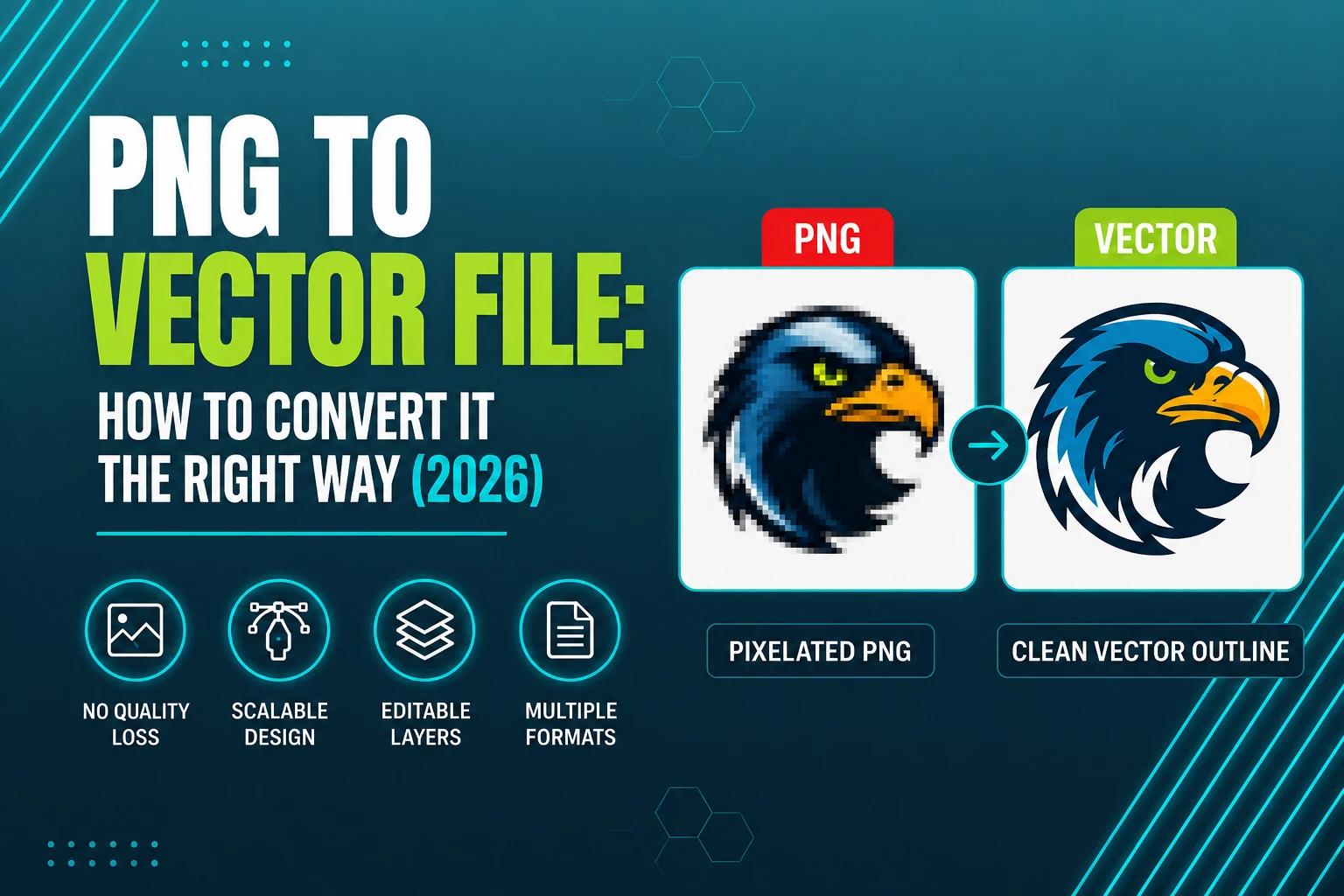


A PNG is not a vector file — it's a raster image made of fixed pixels, so it can't be scaled up without losing quality. To get a true vector file, you need to trace or "vectorize" the PNG using software like Adobe Illustrator or the free tool Inkscape, which converts the pixel image into scalable mathematical paths.
Type "PNG to vector file" into Google and you'll get a dozen tools promising a one-click fix. What most of them don't tell you upfront is that a PNG can't actually be "converted" to a vector the way you'd convert a Word doc to a PDF — it has to be traced, shape by shape, and how well that tracing works depends entirely on what's in the image.
This guide from True Digitizing explains why a PNG isn't a vector file to begin with, walks through the manual and automatic ways to actually vectorize one, compares the tools people use to do it, and covers the mistakes that turn a "quick vectorize" into a redo — including why this step matters so much before a logo goes into embroidery digitizing.
Have a Logo That Needs to Be Vectorized?
True Digitizing has completed 20,000+ designs for USA customers over 13+ years. Send over your PNG and our team will hand-trace it into a clean, scalable vector file.
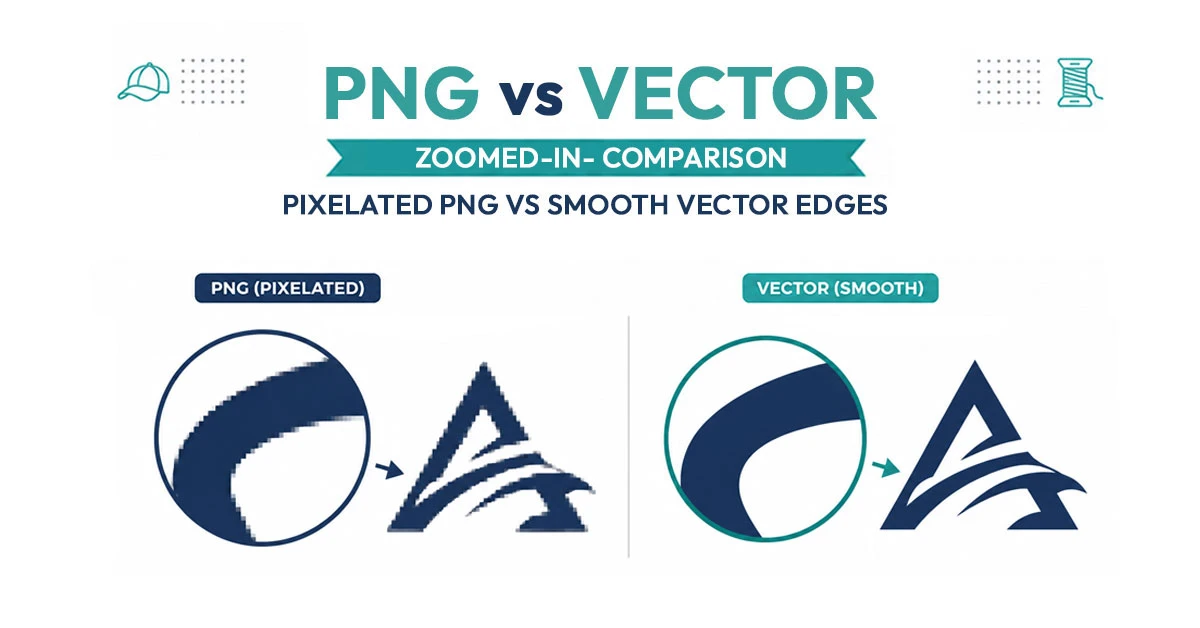
Get a Free Quote — True DigitizingA PNG is a raster image: it stores your design as a fixed grid of colored pixels, the same way a JPG or a photo does. Zoom in far enough on any PNG and you'll eventually see square pixel blocks, because that's literally all the file contains — a set number of dots at a set resolution.
A vector file, by contrast, stores a design as mathematical paths — points, lines, and curves with defined coordinates — rather than pixels. Because those paths are recalculated every time the file is resized, a vector logo looks exactly as sharp printed on a business card as it does blown up on a billboard or stitched into a 4-inch embroidered patch. The W3C's SVG specification, which defines the most common web vector format, describes this path-based structure directly — it's a fundamentally different way of storing an image than PNG's pixel grid.
This is why "converting" a PNG to a vector isn't a simple file-format swap. There's no vector data hiding inside a PNG waiting to be extracted — a program has to look at the pixels and make a judgment call about where each shape's edges actually are. For a full breakdown of the two formats, see True Digitizing's guide on raster vs. vector images.
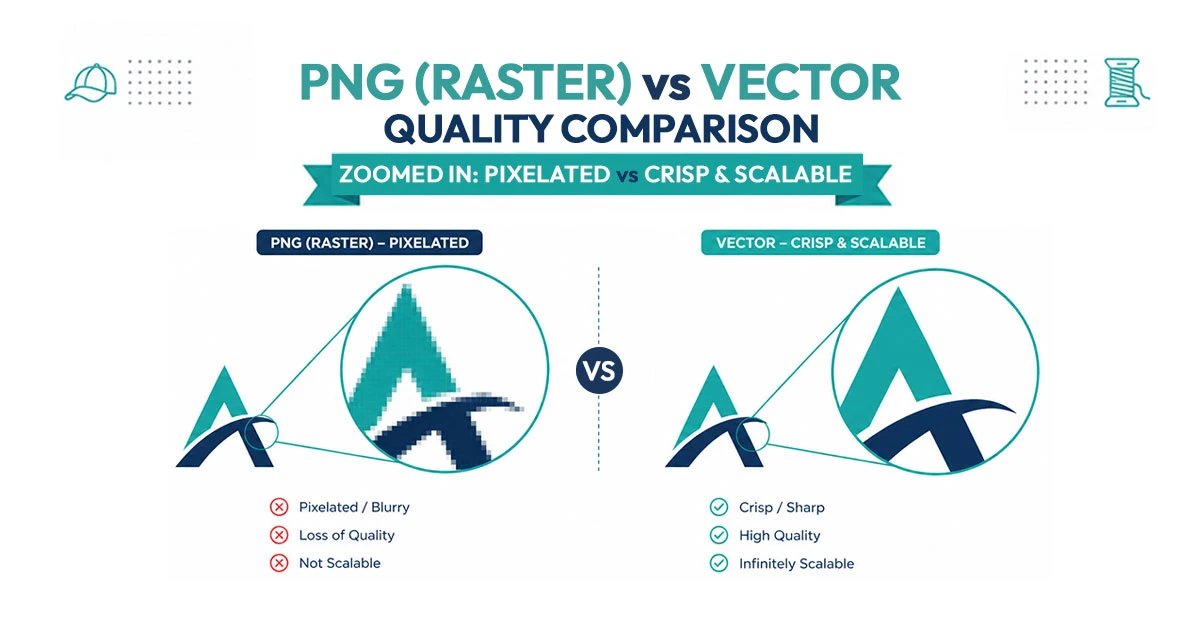
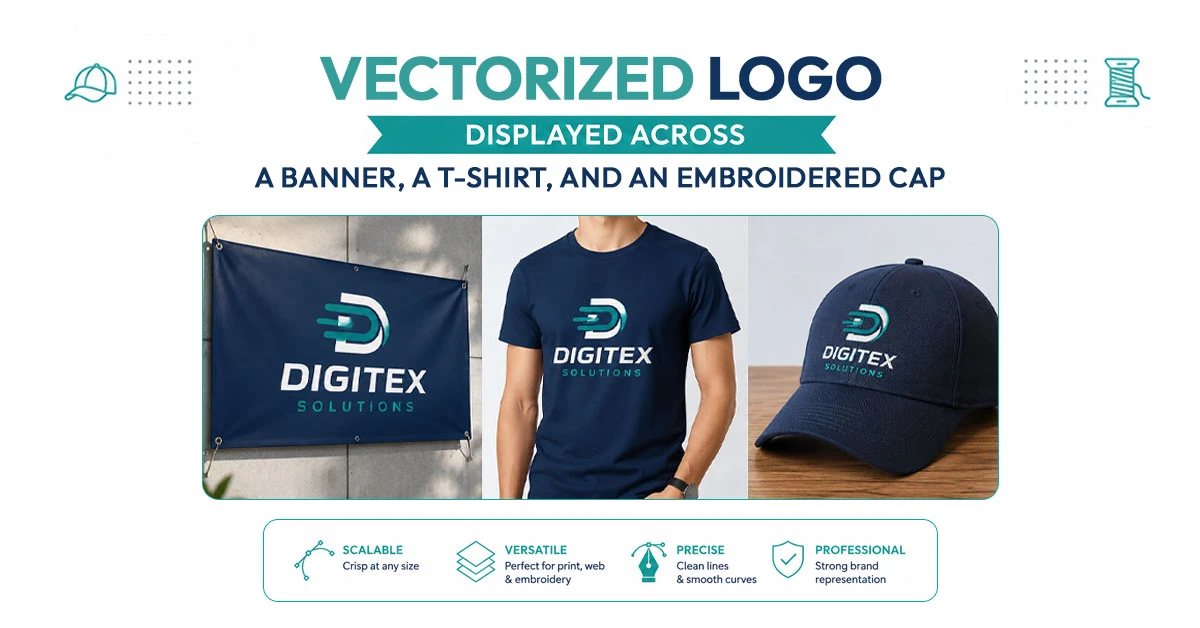
The main reason people need to vectorize a PNG comes down to one word: scaling. A logo saved only as a PNG will blur, pixelate, or show jagged edges the moment it's resized much larger than its original dimensions — which becomes a real problem the moment that logo needs to go on a sign, a vehicle wrap, a large-format print, or an embroidered garment.
In embroidery specifically, a clean vector outline matters even more than it does for print. Digitizing software translates the edges of your artwork into stitch paths — the crisper and more defined those edges are, the more accurately the digitizer can set stitch direction, density, and satin borders. A blurry or jagged raster edge often gets misread as extra detail that doesn't actually exist, which can produce messy, over-stitched outlines. This is one reason True Digitizing's vector tracing service is frequently ordered as a first step before custom embroidery digitizing, rather than digitizing directly from a raw PNG.
Whether you use free software or a paid one, the underlying process for turning a PNG into a real vector file works the same way:
Simple, high-contrast artwork — a wordmark, a flat-color logo, a basic icon — usually vectorizes cleanly with auto-trace and a bit of cleanup. Photos, gradients, and detailed illustrations rarely do; those generally need to be manually traced point by point to get a usable result.
There's no single "best" tool — it depends on your budget, how often you're vectorizing files, and how much control you need over the final paths:
| Tool | Type | Best For |
|---|---|---|
| Adobe Illustrator (Image Trace) | Paid, subscription | Professional-grade control and cleanup tools |
| Inkscape (Trace Bitmap) | Free, open source | Solid results for simple logos with no software cost |
| CorelDRAW (PowerTRACE) | Paid, one-time or subscription | Users already working in the Corel ecosystem |
| Free online vectorizers | Free / freemium web tools | One-off, simple conversions with no editing needed after |
| Manual tracing (Pen tool) | Included in most design software | Complex logos where auto-trace produces messy paths |
| Professional vector tracing service | Paid, per design | Guaranteed clean output for logos, embroidery, or print |
Free online vectorizers are fine for a quick, low-stakes conversion, but most run the same basic auto-trace algorithm and offer little control over anchor points or color grouping — for a brand logo you'll actually use across signage, print, and embroidery, that lack of control tends to show up later as a rough or inconsistent result.
Skip the Trial-and-Error Auto-Trace
True Digitizing hand-traces every logo to a clean, scalable vector file — trusted by 5,000+ USA customers. No merged colors, no messy paths, no redo.
Start My Order at True Digitizing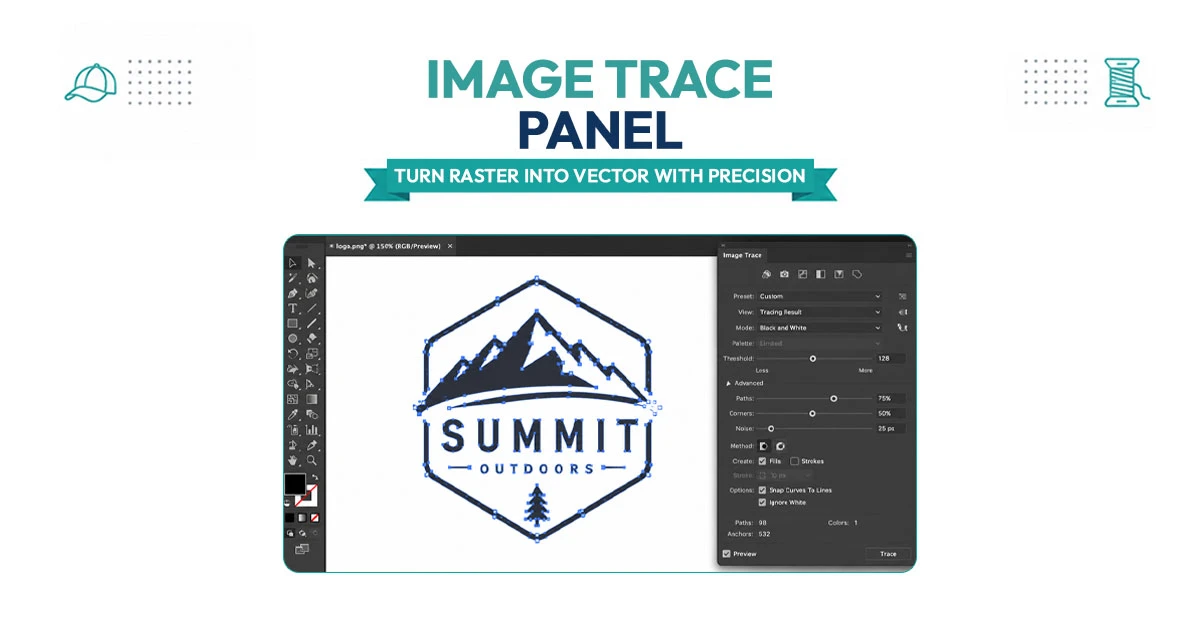
SVG (Scalable Vector Graphics) is the vector format most people actually mean when they search for a "PNG to vector" tool — it's the standard vector format for websites, and most free online converters export to SVG by default. The good news is the process is identical to any other PNG-to-vector conversion: the PNG gets traced into paths, and those paths are saved in the SVG file format instead of AI or EPS.
One thing worth knowing: a "PNG to SVG converter" that just wraps your PNG inside an SVG file (without actually tracing it into paths) isn't really vectorizing anything — it's embedding a raster image inside a vector container, which means it will still pixelate if scaled up. A genuine vectorizer changes the underlying pixel data into paths; it doesn't just relabel the file. If you're unsure whether an SVG is a "true" vector or an embedded raster, see True Digitizing's guide on whether SVG is always a vector file.
Starting from a low-resolution or heavily compressed PNG. Auto-trace can only work with the edges it can actually detect — a blurry or pixelated source produces a rough, imprecise trace no matter how good the software is.
Accepting the auto-trace result without cleanup. Default auto-trace settings often leave stray anchor points, merged colors, or jagged curves that need manual smoothing before the file is actually usable.
Trying to vectorize a photo or gradient-heavy image. Auto-trace tools are built for flat-color logos and icons. Photographs and complex gradients don't translate into clean vector paths — they need to be redrawn by hand, or simplified into a flat-color illustration first.
Skipping the vector step before embroidery digitizing. Sending a raw PNG straight to digitizing software instead of vectorizing it first often means the digitizer is working from a blurrier outline than necessary, which can translate into rougher satin borders on the finished stitch-out.
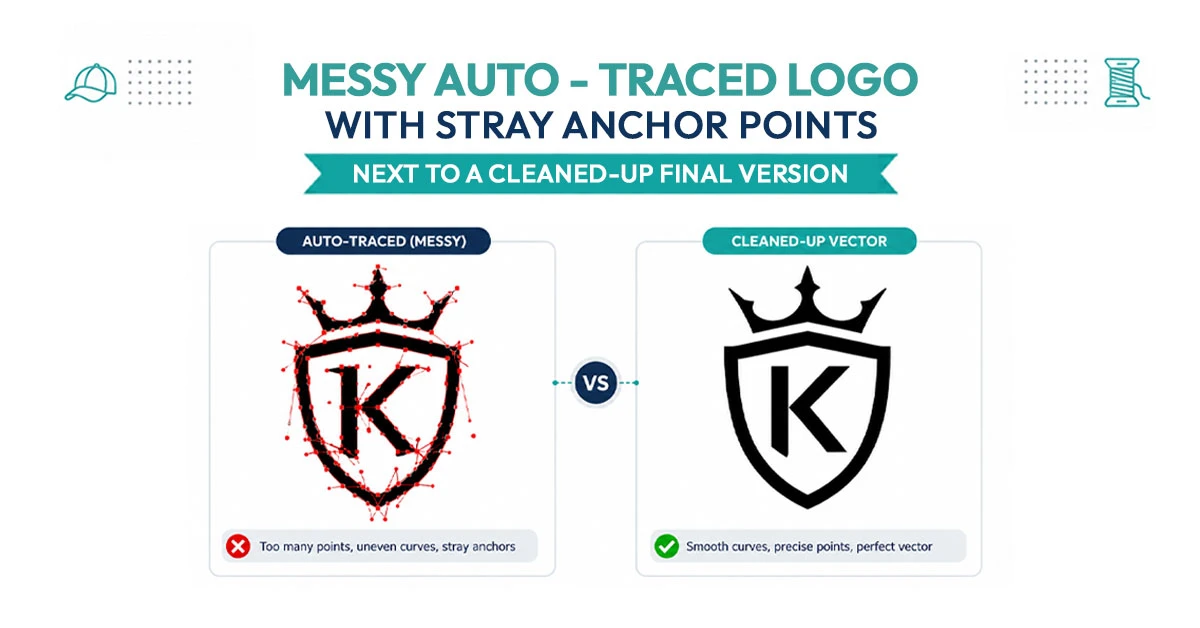
Auto-trace tools will produce a vector file from almost any PNG in seconds. Whether that file is actually clean enough to print large, cut on a sign machine, or digitize for embroidery is a different question.
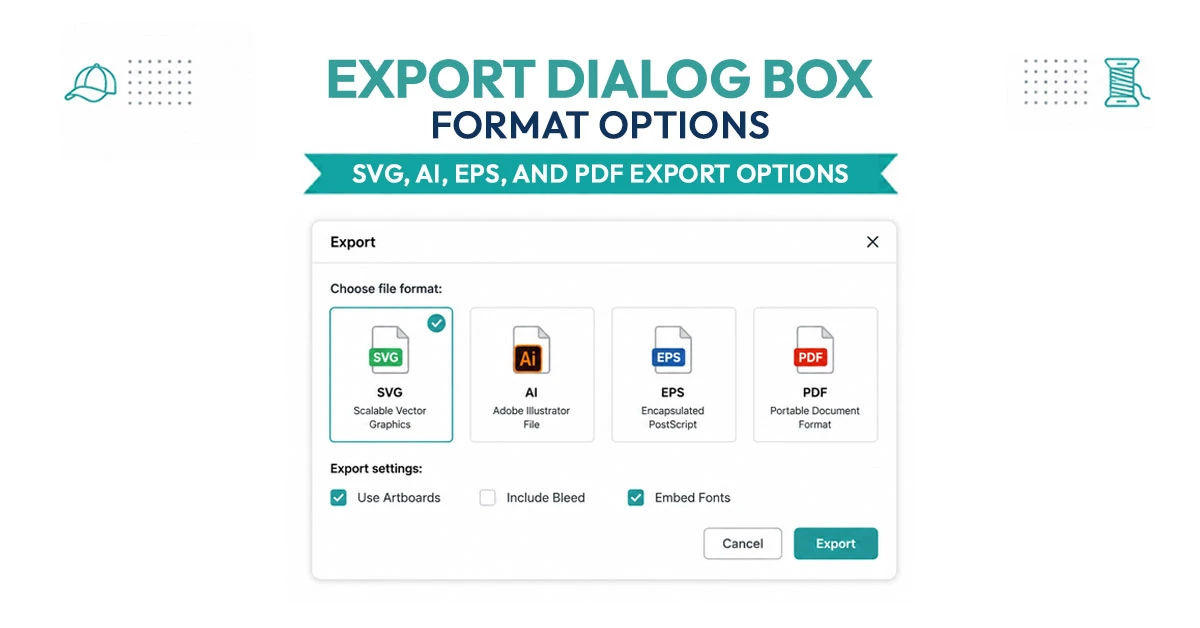
Once your PNG is vectorized, which file format you save it in depends on where it's headed next. SVG is the standard for websites and works in most modern design software. AI (Adobe Illustrator's native format) and EPS are the more common choices for print shops, sign makers, and embroidery digitizers, since they preserve editable paths without any web-specific formatting. PDF can also carry vector data and is a safe, widely readable option when you're not sure what software the recipient uses.
If the vector is headed to an embroidery digitizer, ask which format they prefer before exporting — most, including True Digitizing, can work from AI, EPS, SVG, or PDF, but starting with the format your digitizer actually asks for saves a round trip. For more on vector formats generally, see True Digitizing's guide to what a vector file is. Wikipedia's overview of vector graphics is also a useful primer on how the different vector formats relate to one another.
True Digitizing has helped 5,000+ USA customers get professional vector and embroidery files since 2013. Every logo is hand-traced for crisp edges, accurate colors, and reliable scaling.
Get My Design Vectorized by True Digitizing →Fast turnaround · truedigitizing.com · 100% satisfaction guaranteed
TrueDigitizing's team of embroidery digitizers and file conversion experts — delivering practical guides for home hobbyists and commercial shops alike. Our specialists cover the full range of embroidery production: custom digitizing for machine embroidery, vector art conversion, and physical embroidered patch manufacturing — with a 6-hour turnaround on digital files and worldwide patch delivery in 5 business days. Every article we publish comes from the same people handling real production orders daily. When we write about stitch density, underlay settings, or file formats, it is because we work with these variables across hundreds of client files every week — not because we researched them from the outside.
Categories
Embroidery Backing Guide: Types & How to Choose (2026)
11-10-2026
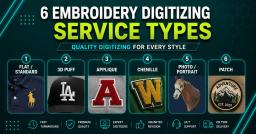
Embroidery Digitizing Services: Which Type Do You Need?
17-08-2026
How to Remove Embroidery From Any Fabric — Step-by-Step Guide 2026
15-07-2026
Is SVG a Vector File? Yes — SVG vs EPS, PNG, PDF Vector Formats you need to know
08-07-2026
Embroidery Trends 2026: What's Hot in Machine & Hand Embroidery | TrueDigitizing
26-06-2026
Top Best Embroidery Digitizing Software in 2026
06-05-2026
Best Multi-Needle Embroidery Machines for Startups (2026)
28-02-2026
DST File: The Complete Guide (What It Is, How to Create, Convert & Use in 2026)
28-02-2026

Janome 550E vs Baby Lock Flare | Best Mid-Range Embroidery Machine?
26-02-2026
Choose the Right Fabric for Embroidery
20-02-2026
Asked Questions